

SemySMS Connect · Android
Your phone becomes your own SMS gateway: messages from the website, the API and your CRM go out from your SIM card, and incoming SMS and calls come back to your dashboard. Now through WhatsApp and MAX too.
APK · 24.4 MB · Android 7 or newer. Works as your default SMS and phone app.
Need the old SemySMS app? Old version page
Features
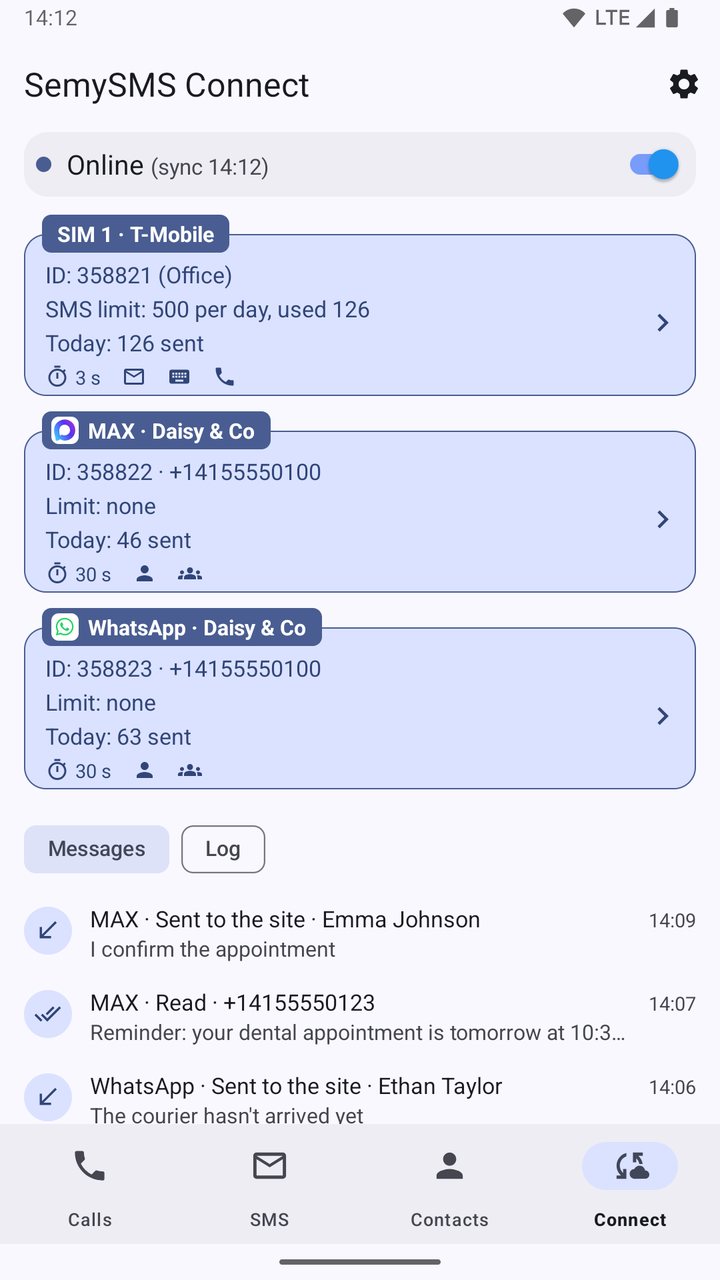
Connect links the phone to your semysms.net account and works in the background. Everything else is a complete SMS and phone app.
Messages created on the website, through the API or in your CRM are sent by the phone from its own SIM card.
No constant connection: the website wakes the phone with a push notification, and the phone checks for tasks every minute.
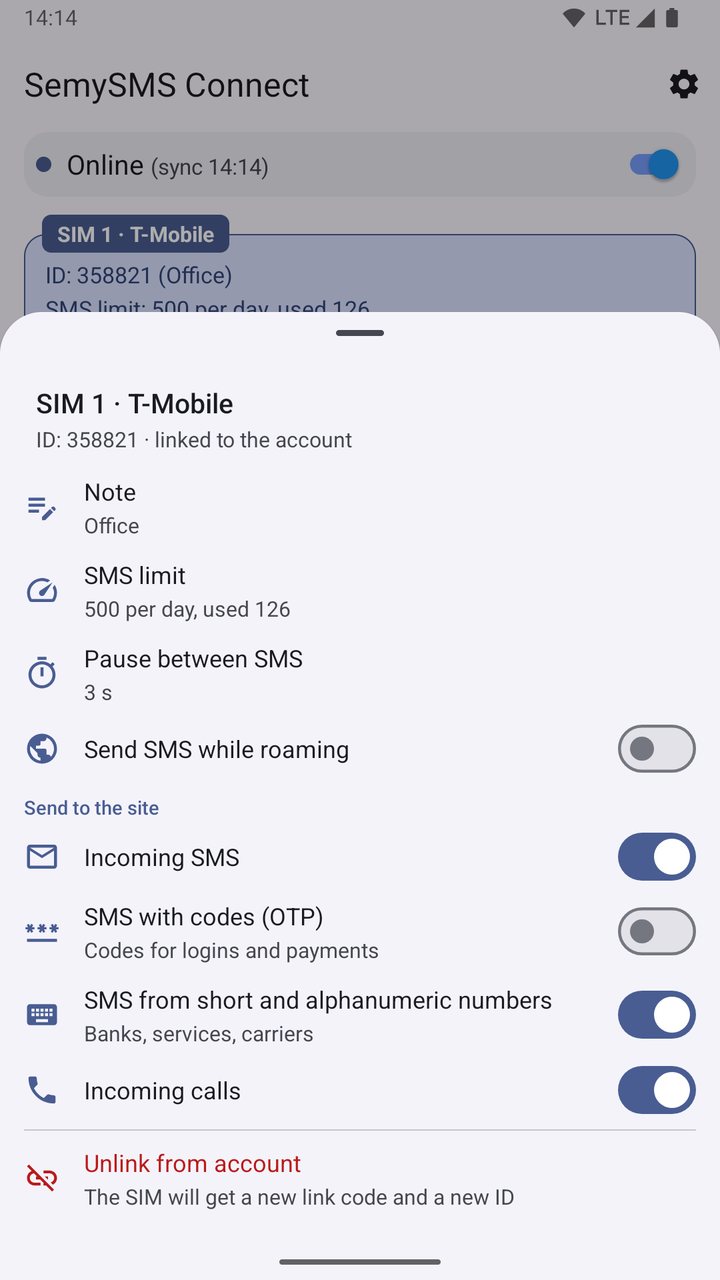
Each SIM gets its own link code and ID on the website, its own pause between messages, limit and note.
They go to your dashboard if you turn this on for a SIM. Confirmation codes and SMS from short numbers only with a separate switch.
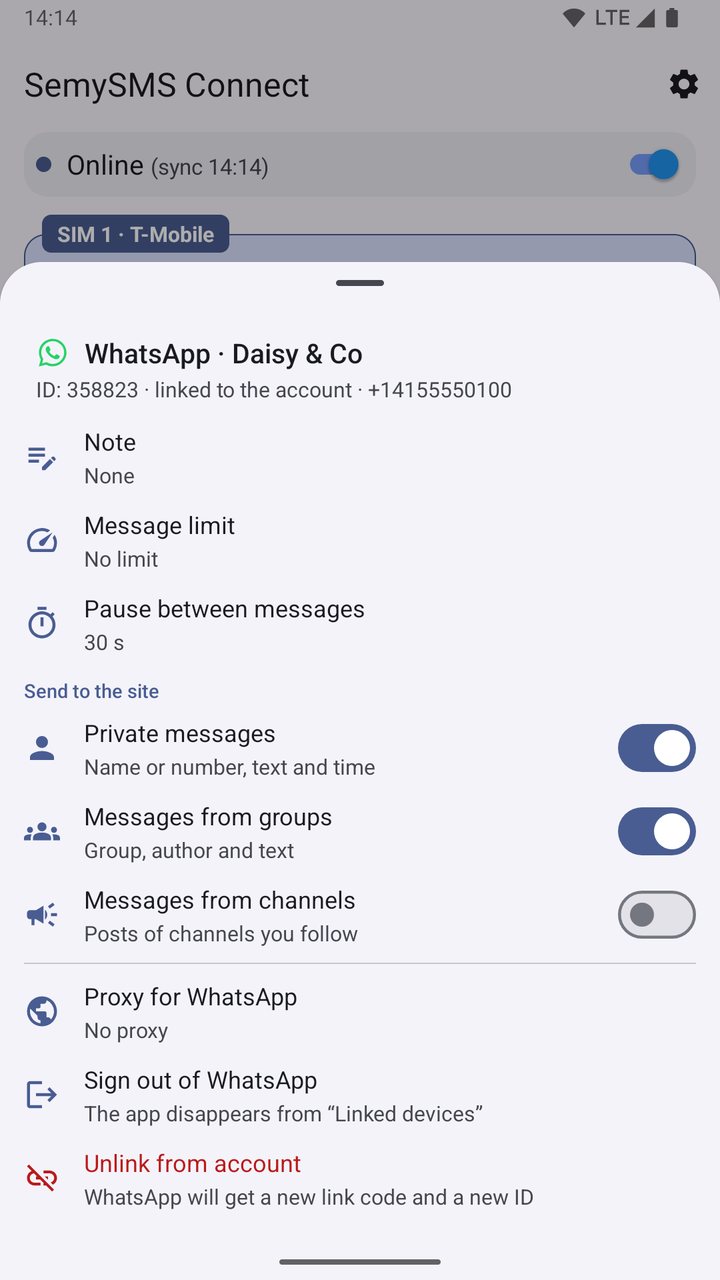
A messenger account is a separate device on the website: send from the website and through the API, receive from private chats, groups and channels.
Statuses reach the website: a carrier report for SMS, delivery for WhatsApp, read status for MAX.
A separate SOCKS5 or HTTP proxy for WhatsApp and MAX if a messenger is not reachable directly.
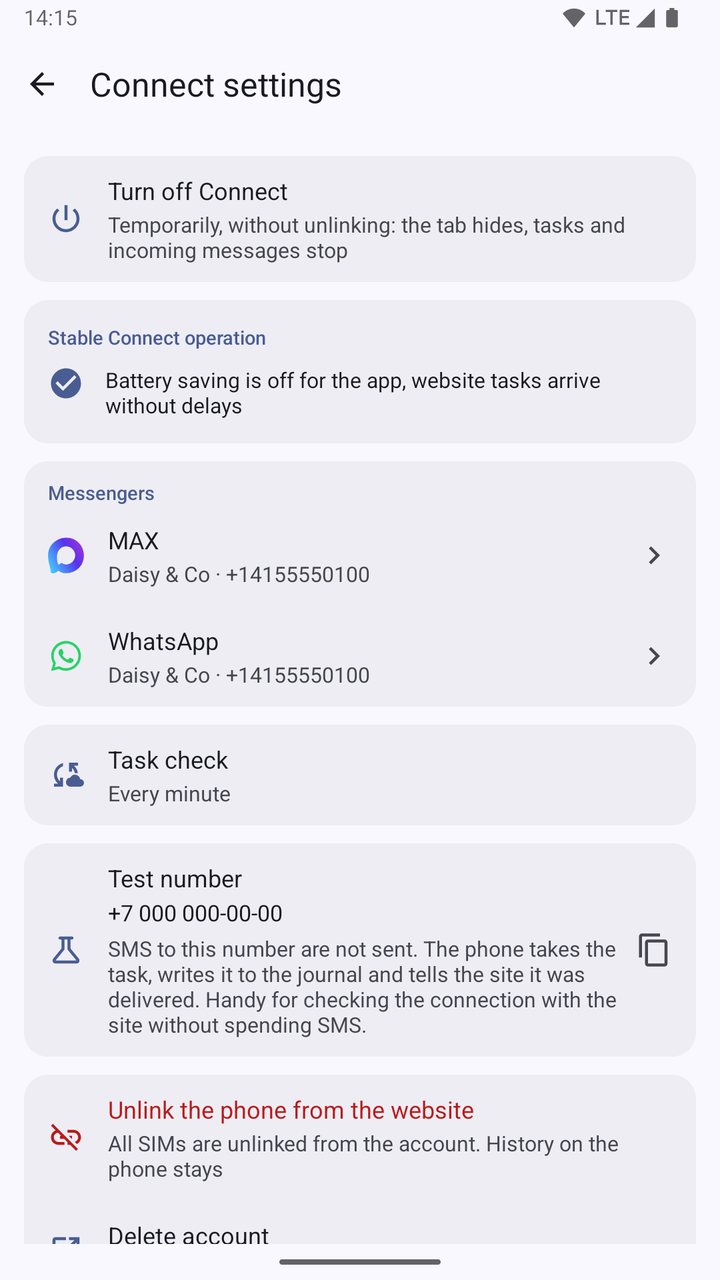
+7 000 000‑00‑00: the phone takes the task and reports it delivered without spending an SMS.
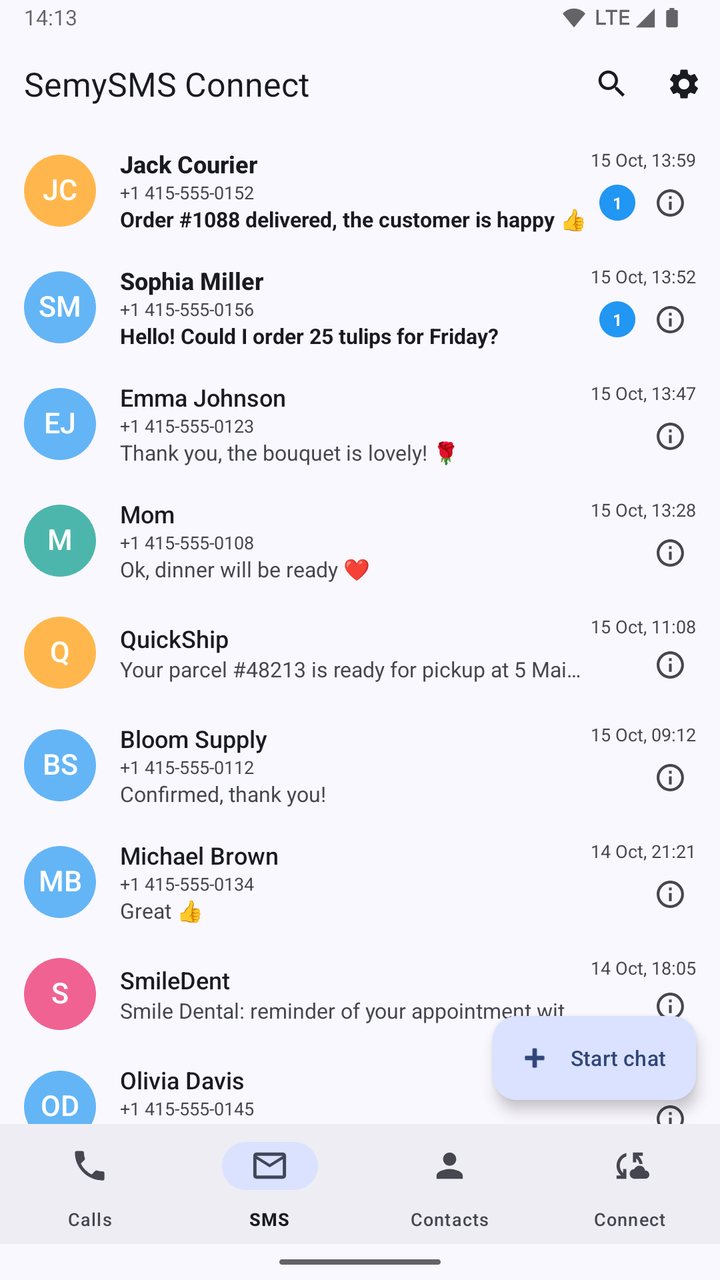
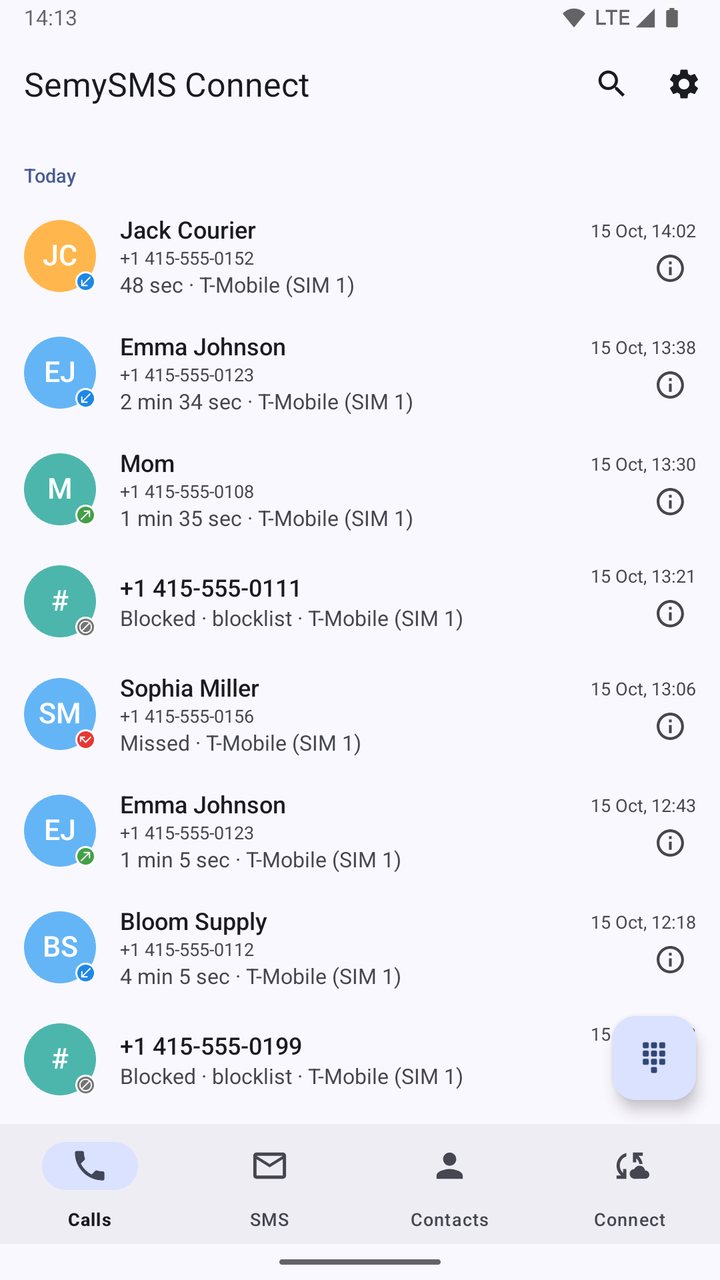
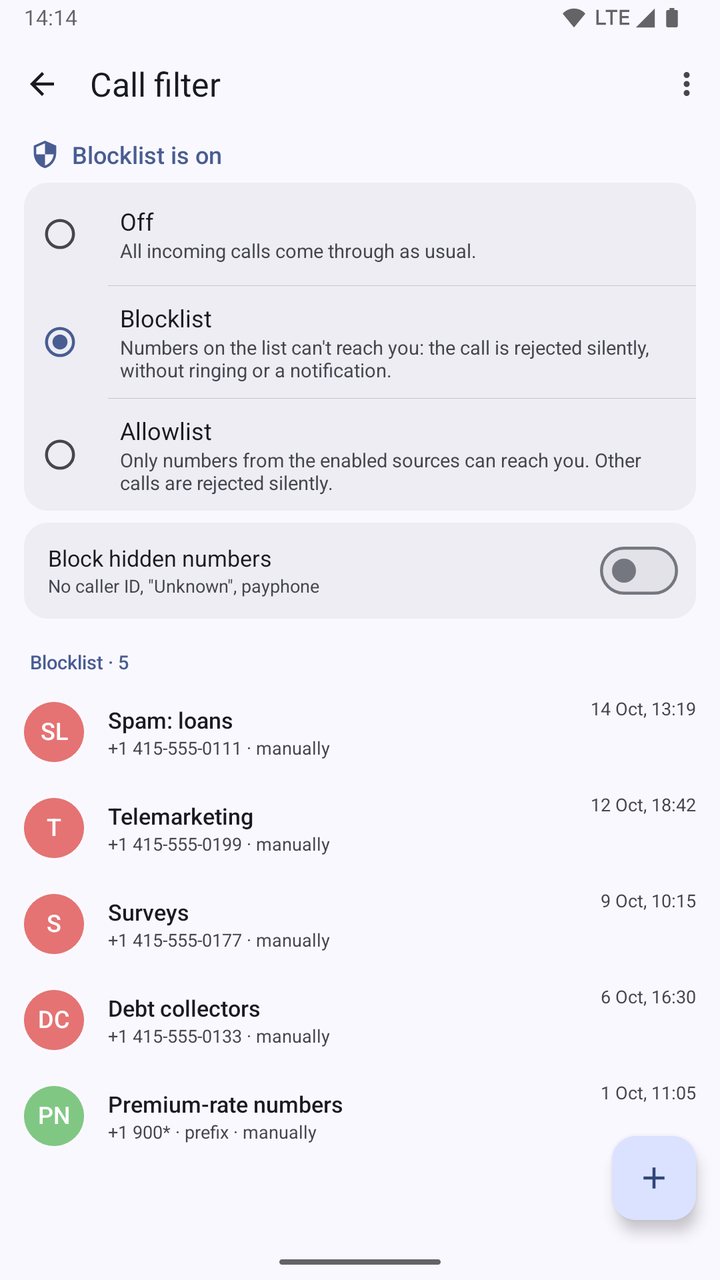
Conversations, a dialer with contact search, call log, call filter (block and allow lists).
Messengers
Messengers are turned on on the website, separately for each phone.
Devices → the pencil next to the phone → Device settings. In the SemySMS Connect block, tick Enable WhatsApp or Enable MAX and save.
Connect settings → Messengers → WhatsApp or MAX. Sign in with a QR code; WhatsApp also offers an 8-character code.
The account gets a link code on the Connect tab: enter it on the website under Devices → Add device. The account becomes a separate device: tasks go to it by ID, just like to a SIM, and you choose which incoming messages to forward (private, groups, channels) in the account card.
Sending through messengers is available on a paid plan.
Screens
Installation
From Google Play or as an APK file from this page.
Set SemySMS Connect as your default SMS app: without it the phone does not send tasks.
Settings → SemySMS Connect → Turn on Connect. The app shows a link code for each SIM.
On the website: Devices → Add device, enter the code. Check the link with a task to +7 000 000‑00‑00.
If you use the previous app, it keeps working. The description and APK of the old version are on a separate page.
