
01 Installing the app and linking the phone #
The app goes on your Android phone before binding: the binding code comes from it.
Download the appMessages go out from the SIM card of your phone. So first the SemySMS Connect app goes on the phone (Android 7 or newer), and then each SIM is linked to your account with its own code.
Install SemySMS Connect from Google Play or as an APK file from the app page. On first launch, set it as the default SMS app: without it the phone does not send website tasks.
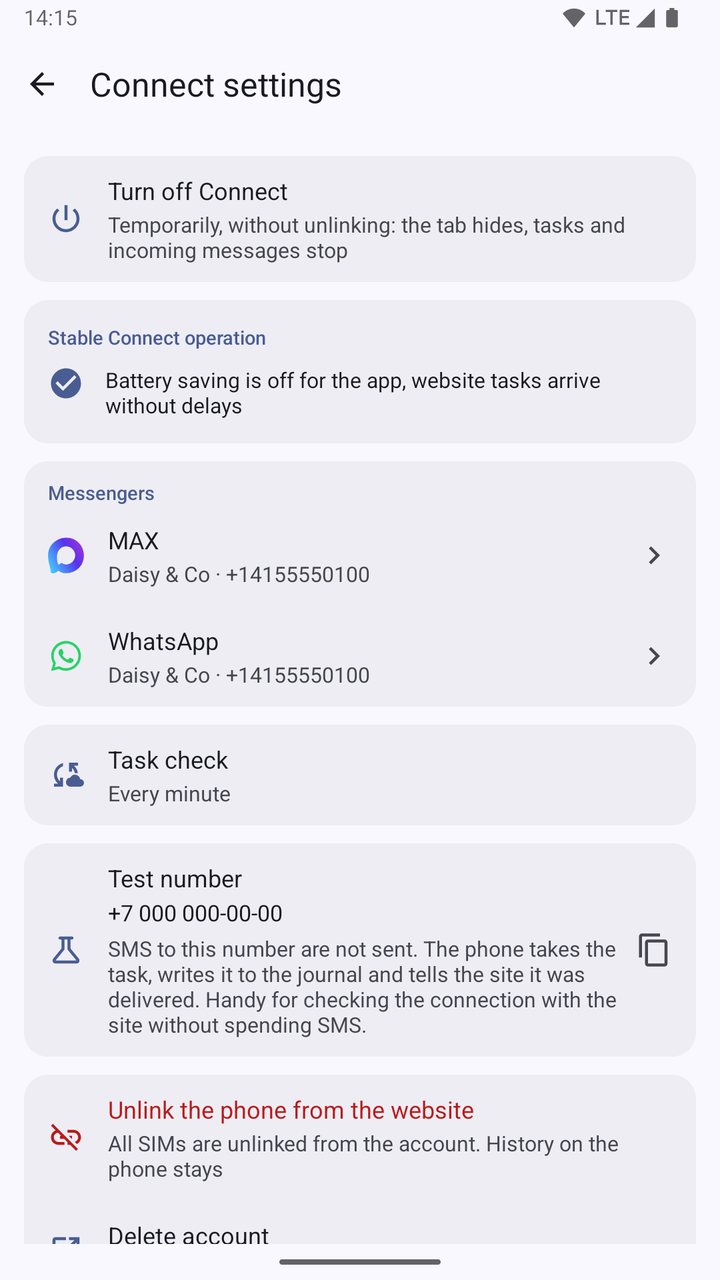
In the app, open Settings → SemySMS Connect and tap Turn on Connect. The app shows which data goes to the website and when. Tap I agree, turn on.
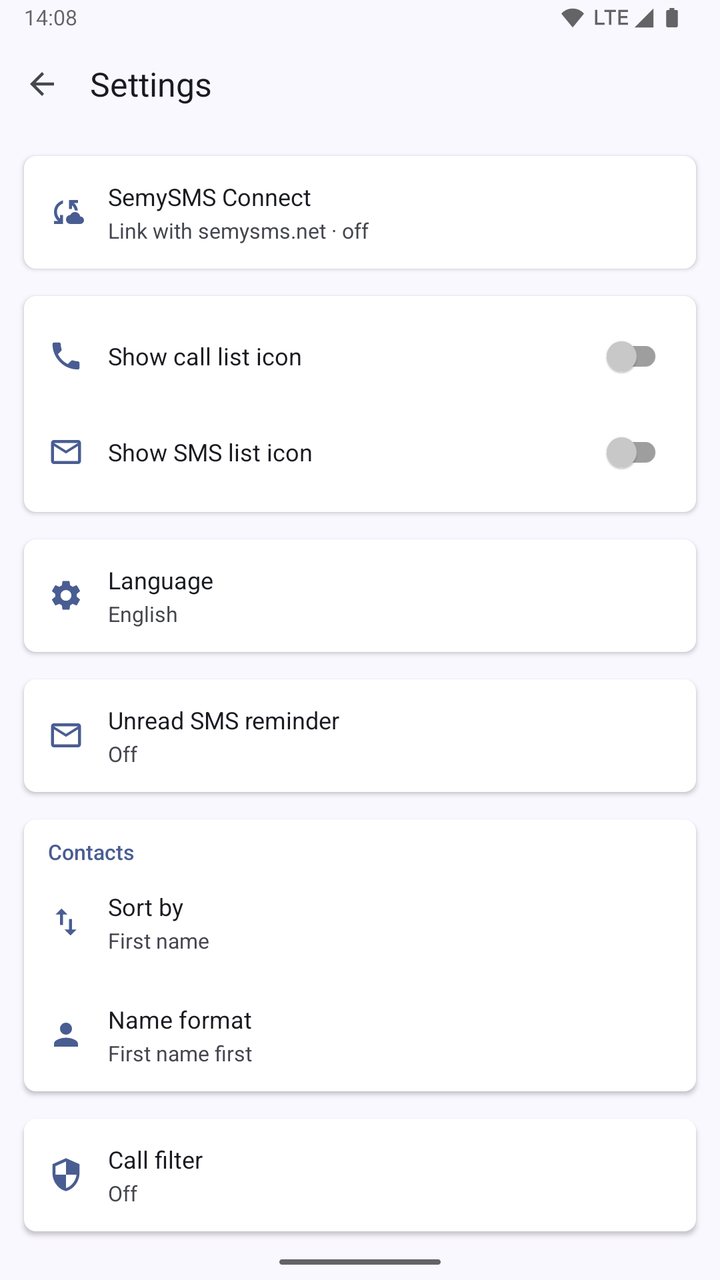
Settings → SemySMS Connect 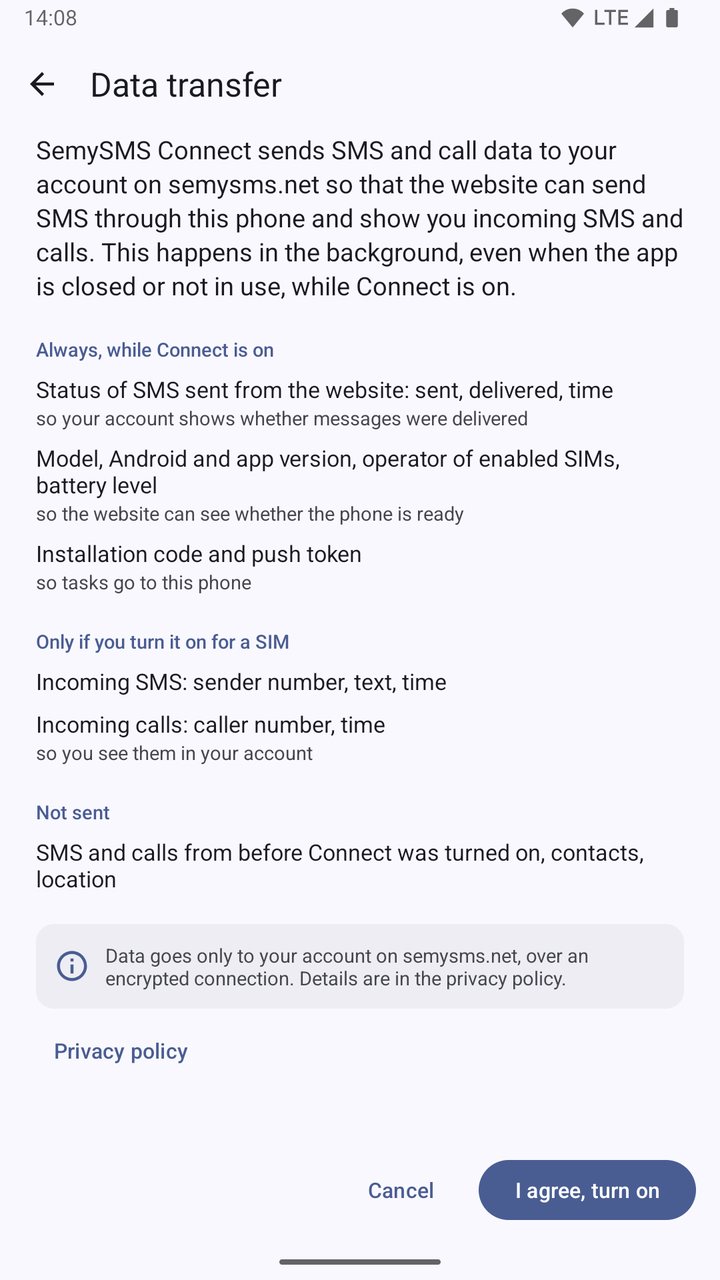
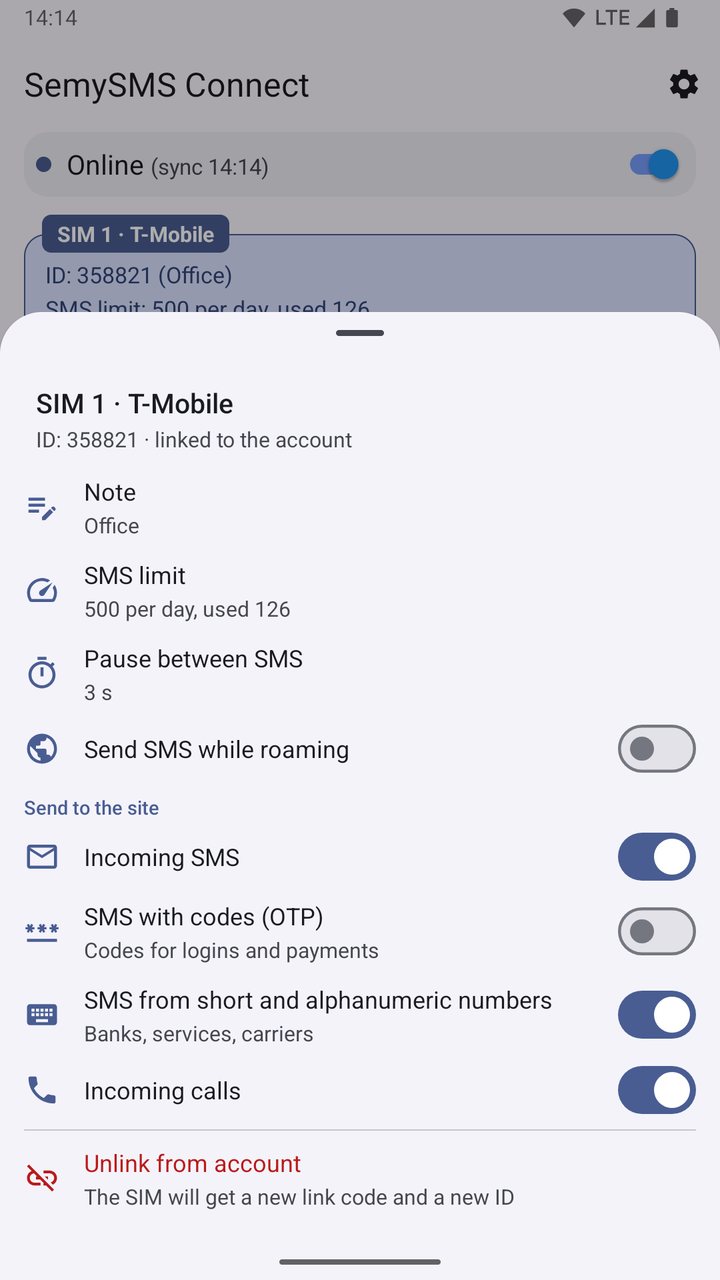
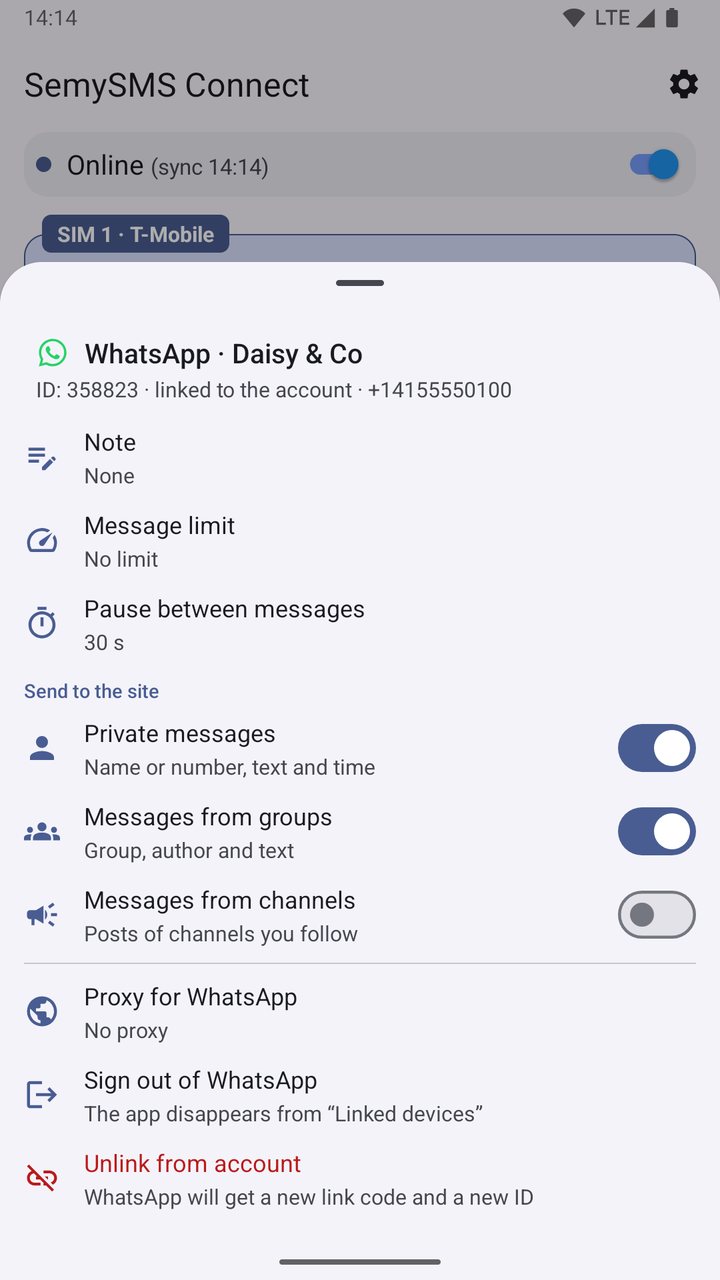
What goes to the website A Connect tab appears at the bottom. Each SIM has its own link code there, with a button to copy it.
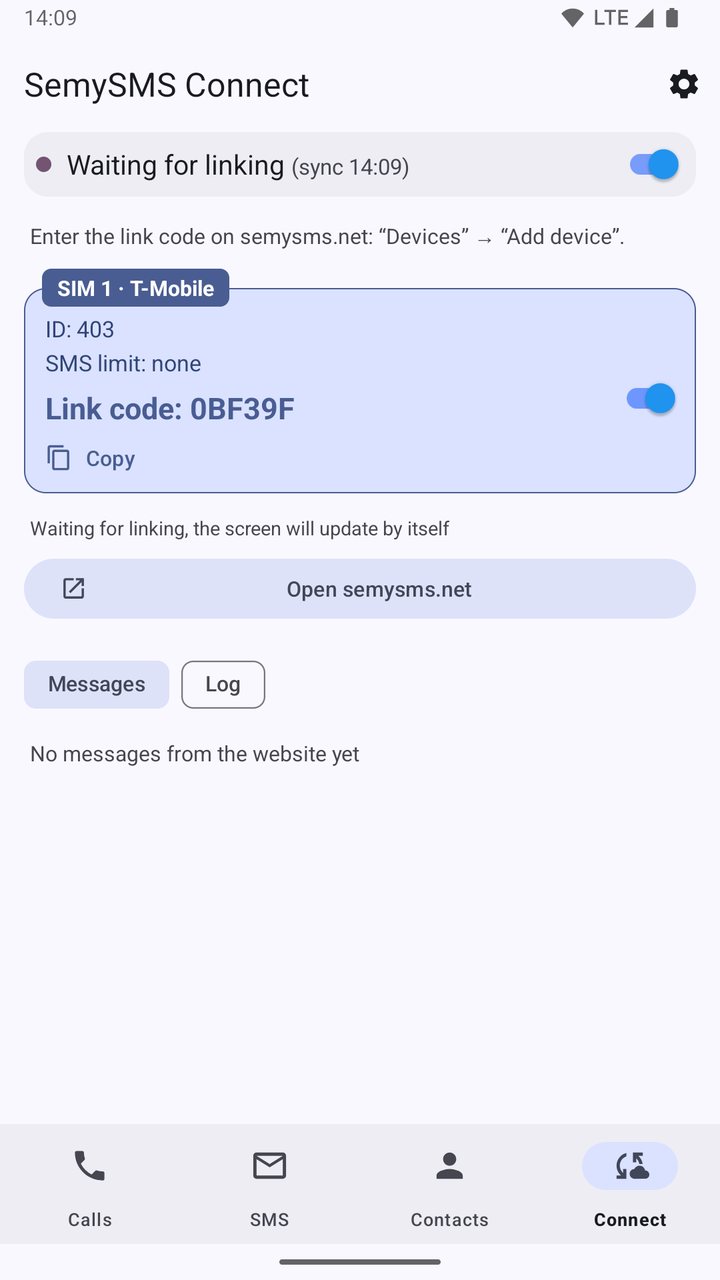
A link code for each SIM On the website, open Devices and click Add device.
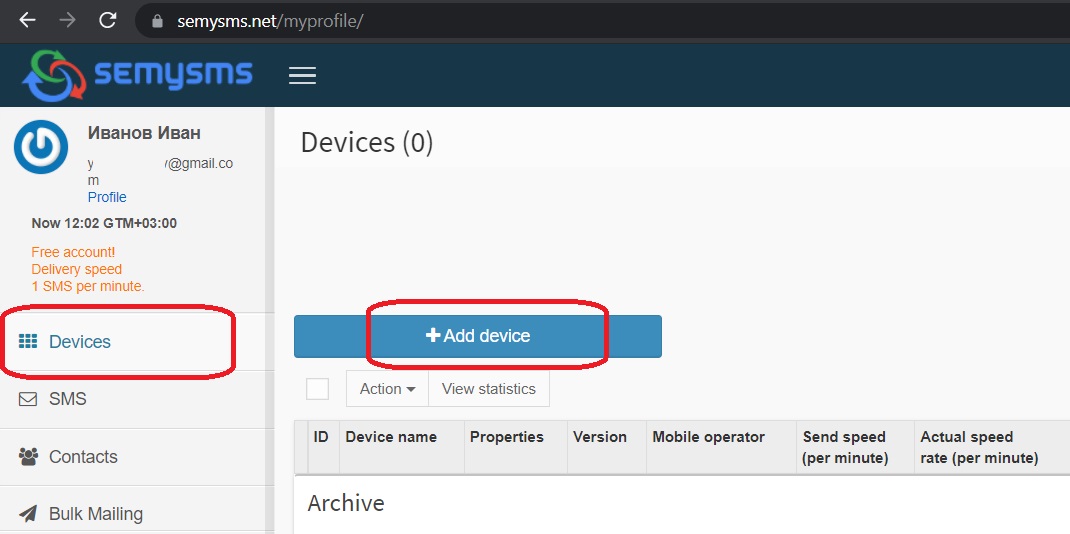
Enter the code and click Add. Each SIM becomes a separate device with its own ID: for the second SIM, repeat with its code.
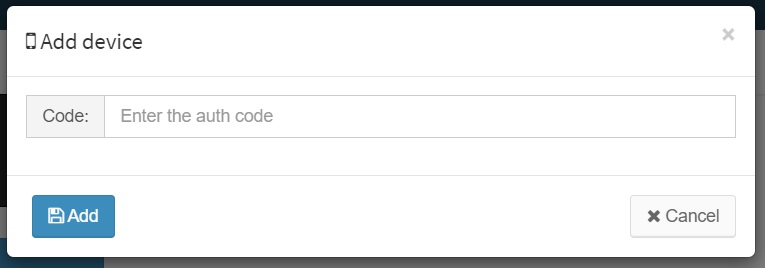
Done: the device is in the list, and in the app the SIM shows its ID and Online instead of the code.
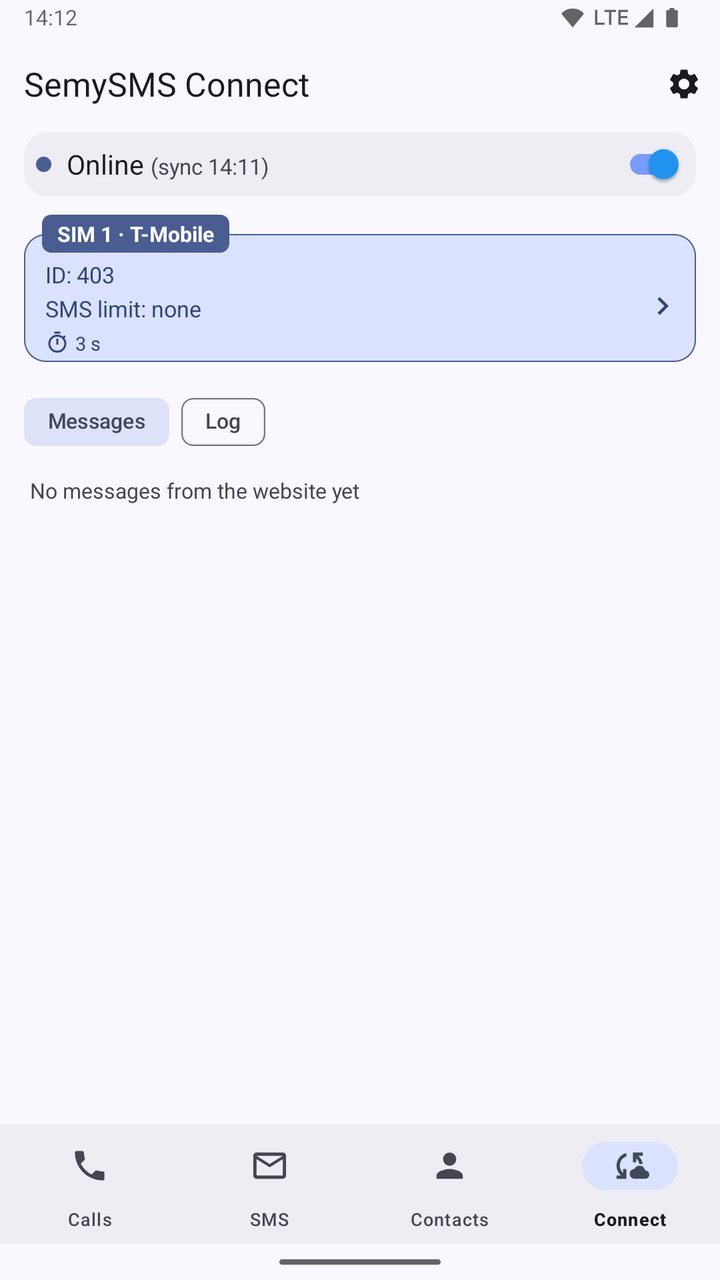

Checking the connection
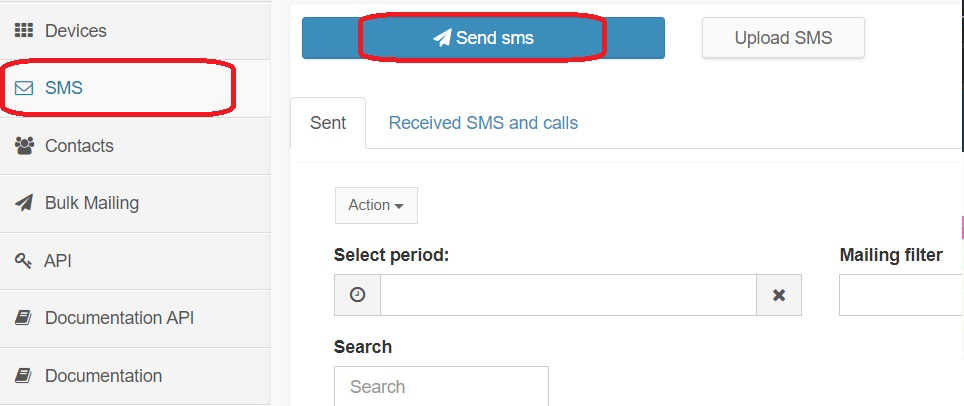
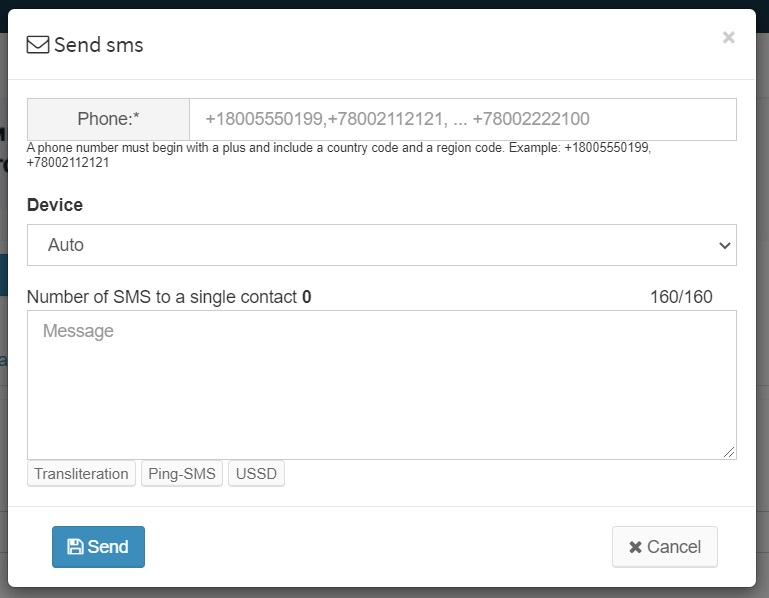
Send an SMS from the website to the test number +7 000 000‑00‑00. The phone takes the task, writes it to the log on the Connect tab and reports it delivered right away. No real SMS is sent.

 battery level, with a lightning bolt while charging;
 the pause between messages in seconds, if one is set.